Imagine settling in for an eagerly anticipated live stream – a crucial gaming tournament, a must-see concert, or an insightful webinar. The action unfolds, then suddenly: pixelation, stuttering audio, the dreaded buffering wheel. Frustrating, isn't it? In today's digital landscape, a seamless streaming experience isn't just a luxury; it's an expectation. This guide isn't about getting by; it's about mastering the art of Optimizing Stream Quality to deliver a consistently flawless, engaging experience for your audience.
We'll cut through the jargon, empower you with actionable insights, and ensure your content shines, whether you're a seasoned broadcaster or just starting. Let's make every frame count.
At a Glance: Your Blueprint for Stellar Streaming
- Internet is King: Prioritize a fast, stable, wired internet connection with ample upload speed.
- Codec Smarts: Understand how resolution, frame rate, and bitrate interact; use modern encoders like H.265.
- Software Savvy: Choose robust streaming software and configure settings for your setup.
- Hardware Power: Invest in a capable PC, a quality camera, and a professional microphone.
- Network Ninja: Employ QoS, CDNs, and edge caching to fight latency and congestion.
- Environment Matters: Optimize lighting and minimize background noise for a polished look and sound.
- Monitor & Adapt: Regularly check system resources and use adaptive bitrate streaming to cater to all viewers.
The Core of Crystal-Clear Streams: What Does "Quality" Really Mean?
At its heart, streaming quality boils down to the clarity, smoothness, and reliability of your video and audio. It's the silent hero behind every captivating stream, ensuring your message or entertainment reaches your audience exactly as intended – without annoying pixel blocks, choppy motion, or frustrating delays.
Think of it as a delicate balance of several critical elements:
- Resolution: The sharpness and detail of your image (e.g., 720p, 1080p, 4K).
- Frame Rate (FPS): How smoothly motion appears (e.g., 30fps for standard video, 60fps for fast action).
- Bitrate: The amount of data transmitted per second, directly impacting visual and audio fidelity.
- Latency: The delay between when you transmit content and when your audience sees it.
- Network Stability: The consistency of your internet connection.
It's also important to distinguish between different types of streaming: - Video Streaming (On-Demand Content): When someone watches a pre-recorded video, the system can "buffer" ahead, allowing for higher quality delivery even with slight network hiccups. The goal is maximum quality, even if it takes a second longer to start.
- Live Streaming (Real-Time Delivery): This is where the rubber meets the road. Low latency is paramount. Buffering is the enemy, as it breaks the real-time connection. Adaptive bitrate streaming becomes crucial, dynamically adjusting quality to match each viewer's connection, ensuring a smooth live experience above all else. Platforms focused on live sports or real-time events, such as La Roja Directa, rely heavily on these principles to keep viewers engaged without interruption.
Understanding these foundational concepts is your first step toward true streaming mastery.
Deconstructing Stream Quality: The Vital Components
Before we dive into the 'how,' let's unpack the key levers you can pull to dictate your stream's quality. Each plays a critical role, and optimizing them often involves finding the right balance for your specific setup and audience.
The Visual Power Duo: Resolution and Frame Rate
These two go hand-in-hand to define the visual fidelity and fluidity of your stream.
- Resolution: Simply put, more pixels equal more detail.
- 720p (HD): Good quality, less demanding. A solid starting point for many.
- 1080p (Full HD): The current standard for crisp, clear visuals, offering a significant upgrade in detail.
- 4K (Ultra HD): Stunningly sharp, but significantly more demanding on your hardware and internet.
- Frame Rate (FPS): This determines how many still images flash per second, creating the illusion of motion.
- 30fps: Standard for many videos, perfectly adequate for talking head streams or slower-paced content.
- 60fps: Essential for fast-moving content like gaming, sports, or action sequences, providing buttery-smooth motion that keeps viewers immersed.
The Sweet Spot: Your ideal resolution and frame rate depend on your content and audience. A cooking show might be fine at 1080p30, but a competitive esports stream demands 1080p60 for competitive edge and viewer clarity.
The Data Flow: Bitrate Explained
Bitrate is the amount of data (in kilobits per second, kbps, or megabits per second, Mbps) your stream transmits. Think of it as the 'density' of your video and audio information.
- Higher Bitrate = Higher Quality: More data means more detail, fewer compression artifacts, and richer colors.
- Higher Bitrate = More Bandwidth Demand: This is where your internet upload speed becomes critical. Pushing too high a bitrate for your connection will lead to buffering and dropped frames for viewers.
- Audio Bitrate: Often overlooked, a balanced audio bitrate ensures synchronized, high-quality sound without adding undue burden to your overall stream. Aim for 128-192 kbps for good stereo audio.
Your Goal: Find the highest bitrate your internet connection and chosen platform can stably support, without causing issues for your typical viewer's download speed. A common recommendation for HD (1080p) streaming is 4,000–6,000 kbps for video.
The Real-Time Hurdle: Latency
Latency is the delay between an event happening on your end and your viewers seeing it. For live streaming, lower latency is always better.
- High Latency: Leads to lag, buffering, and makes real-time interaction (like responding to chat) difficult, if not impossible. Imagine asking a question and getting an answer minutes later—it breaks immersion.
- Low Latency: Crucial for interactive streams, gaming, and time-sensitive events. It ensures a more engaging, connected experience for your audience.
The Impact: In gaming or live sports, high latency can literally mean the difference between a thrilling play and a missed moment.
The Unsung Hero: Network Stability
Even with blazing-fast internet, an unstable connection with frequent drops or "packet loss" will ruin your stream.
- Consistent Connection: Essential for uninterrupted streaming. Imagine a pipe with sporadic leaks – even if the water pressure is good, the flow is inconsistent.
- Minimal Packet Loss: Data packets are small chunks of your stream. If too many get lost in transit, your stream will stutter, pixelate, or freeze.
The Takeaway: Speed is important, but stability is paramount.
The Efficiency Experts: Encoding and Compression
Encoding is the process of converting your raw video and audio into a digital format that can be streamed efficiently. Compression then shrinks that data size.
- Codecs (e.g., H.264, H.265): These are the algorithms that handle encoding and compression.
- H.264 (AVC): The widely supported standard.
- H.265 (HEVC): A newer, more efficient codec that can reduce bandwidth consumption by up to 50% compared to H.264 at the same quality level. This means higher quality at lower bitrates, or the same quality using less internet bandwidth. The catch? It requires more processing power to encode and decode, and not all platforms or devices fully support it yet.
The Advantage: Efficient encoding allows you to deliver higher quality using less bandwidth, a win-win for both streamer and viewer.
The Playback Platform: Device and Software Optimization
Your stream's journey doesn't end when it leaves your computer. How it's displayed on the viewer's end also impacts their perception of quality.
- Hardware Acceleration (GPUs): Utilizing your graphics card for encoding dramatically improves performance, reducing the load on your CPU and freeing up resources for your game or application.
- Optimized Software: Modern streaming software and playback clients are designed to efficiently handle different codecs and dynamically adjust to device capabilities, ensuring seamless playback across various devices (desktops, mobile, smart TVs).
The Bottom Line: A powerful system on your end and well-optimized software throughout the delivery chain contribute to a smooth experience.
Your Action Plan for Flawless Streaming
Now that we understand the ingredients, let's look at the actionable steps to mix them perfectly.
Foundation First: Your Internet and Network Setup
Your internet connection is the backbone of your stream. Skimping here is like building a skyscraper on quicksand.
1. Secure a High-Speed, Stable Internet Connection
This is non-negotiable. Don't just look at download speeds; your upload speed is crucial for streaming.
- For HD (720p/1080p) Streaming: Aim for a dedicated upload speed of at least 5-6 Mbps.
- For 1080p Streaming (Standard High-Quality): Target download speeds of 5-10 Mbps for viewers, and you'll need similar upload speeds for yourself.
- For 4K Streaming: This is a bandwidth beast. You'll need download speeds of at least 25 Mbps for viewers, and your upload must be significantly higher (20-30 Mbps+) to even attempt it.
Pro Tip: Run a speed test (search for "internet speed test") multiple times throughout the day to get an average reading, especially during peak internet usage hours in your area.
2. Use a Wired Ethernet Connection
If you take away one piece of advice from this section, let it be this: ditch Wi-Fi for streaming.
- Enhanced Stability: Wired connections are far less prone to interference from other devices, microwaves, or even your neighbor's Wi-Fi.
- Consistent Speeds: You'll get more reliable, consistent speeds closer to what your ISP advertises.
- Reduced Latency: Wired connections inherently have lower latency than wireless.
Run an Ethernet cable from your router directly to your streaming PC. It's a small inconvenience for a massive boost in reliability.
3. Reduce Network Congestion
Your internet bandwidth is a shared resource within your home.
- Limit Background Downloads: Pause large game updates, cloud syncs, or software downloads on all devices while you're streaming.
- Curb Other Bandwidth-Intensive Activities: Ask housemates to avoid simultaneous 4K Netflix streams, large file transfers, or competitive online gaming on other devices during your stream.
- Disconnect Unused Devices: Every connected device consumes a small amount of bandwidth.
4. Implement Quality of Service (QoS)
Many modern routers offer QoS settings, which allow you to prioritize certain types of internet traffic.
- How it Works: You can tell your router to give priority to your streaming PC's data packets over, say, a tablet browsing social media.
- Configuration: Access your router's settings (usually by typing its IP address into a browser, like 192.168.1.1 or 192.168.0.1). Look for "QoS" or "Traffic Prioritization" settings. You can often prioritize by device (assigning highest priority to your streaming PC) or by application (prioritizing streaming protocols).
QoS acts as a digital bouncer, ensuring your stream gets VIP treatment on your local network.
5. Leverage Content Delivery Networks (CDNs) and Edge Caching
While more relevant for professional broadcasters or platforms, understanding CDNs is helpful.
- CDNs: These are globally distributed networks of servers. When you stream, your content is sent to a CDN server, which then replicates it to other servers closer to your viewers. This significantly reduces latency and buffering, especially for a global audience, by delivering content from a geographically closer server.
- Edge Caching: A component of CDNs, edge caching stores frequently accessed content at these local nodes (the "edge" of the network). This means the content doesn't have to travel all the way back to your main server every time, decreasing data transfer times and improving responsiveness.
If you're using a major streaming platform (Twitch, YouTube, Vimeo, etc.), they already utilize CDNs for you. For self-hosted solutions, consider integrating with a CDN provider.
Mastering Your Stream: Software and Settings
Even with the best internet, suboptimal software settings can cripple your quality.
1. Select High-Quality Streaming Software
Your streaming software is your command center. Choose one that's robust, efficient, and user-friendly.
- Key Features to Look For:
- Smooth Operation: Doesn't hog system resources.
- High-Quality Output: Supports various codecs and high resolutions.
- Multistreaming Capabilities: (If you stream to multiple platforms simultaneously).
- User-Friendly Interface: Easy to learn and configure.
- Examples: OBS Studio (free, open-source, powerful), Streamlabs Desktop (user-friendly, integrated features), XSplit Broadcaster (professional-grade).
2. Understand and Configure Key Settings
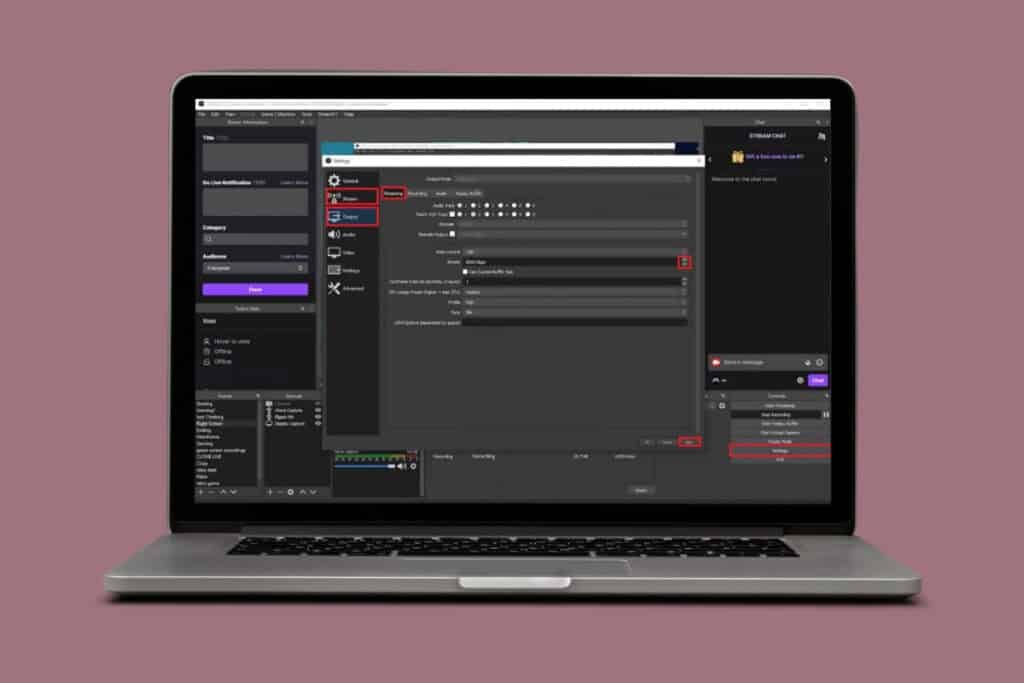
This is where you tell your software how to encode and transmit your stream.
- Bitrate, Resolution, and Frame Rate: These are your core three.
- Start with your upload speed: If you have 10 Mbps upload, you can comfortably set your video bitrate to 6,000 kbps (6 Mbps), leaving headroom for audio and network overhead.
- Match Resolution to Content: 1080p is a great goal, but if your internet or PC struggles, don't be afraid to drop to 720p. It's better to have a stable 720p stream than a buffering 1080p one.
- Frame Rate for Motion: For gaming or fast action, 60fps is ideal. For slower content, 30fps is fine and less demanding.
Always test your settings privately before going live! Stream to a private channel or local recording for 10-15 minutes and review the footage for dropped frames, pixelation, or audio sync issues.
3. Embrace Adaptive Bitrate Streaming (ABS)
This feature is a game-changer for viewer experience.
- How it Works: ABS creates multiple versions of your stream at different qualities (e.g., 1080p, 720p, 480p, 360p). Your streaming platform then automatically detects the viewer's internet speed and device capability and delivers the best possible quality they can handle without buffering.
- Why it Matters: Not everyone has fiber internet. ABS ensures that viewers with slower connections still get a smooth, albeit lower-resolution, stream, while those with fast connections enjoy your full HD glory. This dramatically reduces viewer drop-off.
- Implementation: Many major streaming platforms (YouTube, Twitch, Vimeo) offer ABS automatically to their partners or larger channels. For self-hosted solutions, you'll need a streaming server or CDN that supports ABR.
4. Utilize Efficient Encoding: H.265 (HEVC)
If your hardware and platform support it, H.265 is a significant upgrade.
- The Advantage: As mentioned earlier, H.265 (HEVC) can deliver up to 50% better compression than H.264, meaning you can achieve the same visual quality with half the bitrate, or vastly superior quality at the same bitrate.
- Considerations:
- Processing Power: HEVC encoding is more computationally intensive. You'll need a modern CPU or, more preferably, a dedicated GPU with HEVC encoding capabilities.
- Platform Support: Ensure your streaming platform and your target audience's viewing devices widely support H.265 decoding. While growing, it's not as universally supported as H.264 yet.
5. Employ Low-Latency Protocols
For truly interactive live streaming, the protocol you use for transmission matters.
- Standard Protocols: RTMP (Real-Time Messaging Protocol) is common but can have 5-10 second latency.
- Low-Latency Protocols:
- WebRTC: Often used for video conferencing, it provides near real-time communication (sub-1 second latency).
- LL-HLS (Low-Latency HTTP Live Streaming): An extension of HLS, designed to bring latency down to 2-3 seconds.
- SRT (Secure Reliable Transport): An open-source protocol designed for secure, low-latency, and high-performance video transport over unreliable networks, achieving lag times under 3 seconds.
If ultra-low latency is critical for your content (e.g., live auctions, interactive game shows), investigate if your streaming platform or solution supports these protocols.
Powering Perfection: Hardware and System Optimization
Your physical equipment forms the foundation for your stream's output.
1. Invest in a High-Performance PC
Your computer is doing a lot of heavy lifting: running your game/application, capturing video, encoding it, and sending it out.
- Processor (CPU): A powerful multi-core CPU (e.g., Intel Core i7/i9 or AMD Ryzen 7/9) is crucial, especially if you're doing CPU-based encoding or running demanding games.
- Graphics Card (GPU): A dedicated GPU is highly recommended. Modern GPUs excel at hardware encoding (e.g., NVIDIA's NVENC or AMD's AMF), offloading the work from your CPU and often providing superior quality at lower bitrates. This is a common strategy to maximize stream quality without sacrificing game performance.
- RAM: At least 16GB of RAM is advisable for streaming, especially if you're running multiple applications simultaneously.
- Storage: An SSD (Solid State Drive) for your operating system and streaming software will ensure faster boot times and smoother operation.
The Bottom Line: Don't skimp on your streaming rig. Adequate specs prevent dropped frames, lag, and crashes.
2. Choose a High-Quality Camera and Microphone
Even with perfect technical settings, poor input quality will ruin your stream.
- Camera:
- Resolution: Opt for at least HD (1080p) or 4K if your budget and setup allow. A crisp, clear image makes a huge difference.
- Lighting Performance: Look for cameras that perform well in various lighting conditions.
- Examples: High-end webcams (Logitech Brio, Razer Kiyo Pro), mirrorless cameras (Sony Alpha, Canon EOS R series with capture cards), or dedicated camcorders.
- Microphone:
- Audio is King: Viewers will tolerate mediocre video more than bad audio. Invest here!
- Type: USB microphones (Blue Yeti, Rode NT-USB) are great for beginners. XLR microphones (Shure SM7B, Rode Procaster) offer professional-grade quality but require an audio interface.
- Noise-Canceling: Look for microphones with good off-axis rejection (meaning they pick up less sound from the sides/rear) or consider software-based noise suppression (like NVIDIA Broadcast, OBS filters).
Remember: Clear, professional-grade audio makes your stream instantly more watchable.
3. Monitor System Resources Regularly
Keep an eye on what your PC is doing.
- Tools: Use Task Manager (Windows), Activity Monitor (macOS), or built-in performance monitors in your streaming software.
- Key Metrics:
- CPU Usage: If consistently near 100%, your CPU is overloaded.
- GPU Usage: High GPU usage is fine if you're using hardware encoding, but watch for spikes that indicate issues.
- RAM Usage: Ensure you're not maxing out your available memory.
- Dropped Frames: Your streaming software will report this. It's a key indicator of network or encoding issues.
- Action: Close unnecessary background processes, browser tabs, and applications. Every little bit of freed-up resource helps.
4. Enhance Device Performance
Beyond your main PC, other network hardware contributes to the overall stability.
- High-Performance Routers: Upgrade to a modern router (e.g., Wi-Fi 6 or Wi-Fi 6E) even if you're primarily wired. Newer routers often have better internal processors and QoS capabilities.
- Firmware and Software Updates: Keep your router's firmware, your operating system, GPU drivers, and streaming software consistently updated. These updates often include performance improvements, bug fixes, and security patches critical for smooth operation.
Beyond the Tech: Environment & Troubleshooting
Sometimes the best tech can't fix simple environmental issues.
1. Ensure Proper Lighting
Good lighting is the cheapest and most effective upgrade to your visual quality.
- Main Light Source: Position your primary light behind your camera, aimed at you. This illuminates your face evenly, avoiding harsh shadows.
- Soft Light: Use diffusers or softboxes to create soft, flattering light. Hard light creates sharp, unflattering shadows.
- Color Temperature: Aim for consistent, natural color temperature (around 5000K-6500K for white light). Mixing warm (yellow) and cool (blue) lights can look jarring.
- Options: Portable LED lights are excellent and affordable. Natural window light can work, but be mindful of changes throughout the day.
A well-lit subject looks professional, regardless of camera cost.
2. Avoid Background Noise
Clear audio is paramount.
- Control Ambient Noise:
- Close windows and doors: Block out traffic, pets, or household sounds.
- Silence notifications: Put phones on silent, disable desktop notifications.
- Inform housemates: Let others know you're streaming to minimize interruptions.
- Noise-Canceling Microphones/Software: Utilize features in your microphone or software (e.g., NVIDIA Broadcast, OBS noise suppression filters) to actively reduce background noise.
- Regular Sound Checks: Always do a quick sound check before going live. Record a few minutes of yourself talking and playing your content to ensure the levels are good and there's no unwanted noise.
3. Identify and Resolve Stream Quality Problems
Problems will happen. The key is knowing how to diagnose and fix them.
- Monitor Performance Tools:
- Streaming Software Statistics: OBS and Streamlabs show dropped frames, CPU/GPU usage, and bitrate.
- Bitrate Monitors: Some platforms or third-party tools can help you monitor your actual transmitted bitrate, revealing fluctuations that often indicate network instability.
- Viewer Feedback: Pay attention to chat comments about quality issues!
- Common Problems & Solutions:
- Pixelation/Choppiness (Dropped Frames):
- Diagnosis: Often due to insufficient upload bandwidth or your PC struggling to encode.
- Solution: Improve internet connection, reduce your stream's bitrate, lower resolution/frame rate, or upgrade CPU/GPU.
- Lag/Buffering for Viewers:
- Diagnosis: Almost always network related, either on your end or the viewer's, or server overload.
- Solution: Ensure your internet is stable, reduce network congestion, enable adaptive bitrate streaming, use CDNs if applicable.
- Audio/Video Desync:
- Diagnosis: Often due to incorrect audio delay settings in your streaming software or hardware processing delays.
- Solution: Adjust audio sync offset in OBS/Streamlabs.
- Poor Visuals (Dark, Grainy):
- Diagnosis: Bad lighting or camera settings.
- Solution: Improve lighting, adjust camera ISO, exposure, or white balance.
- System Overload (Stuttering Game/App):
- Diagnosis: Your PC can't handle the game/app AND streaming.
- Solution: Close background processes, lower game graphics settings, utilize hardware encoding (GPU), or upgrade components.
- Ensure Device Compatibility: Modern streaming is consumed on a vast array of devices. Adaptive bitrate streaming is your best friend here, as it automatically delivers the appropriate quality for smart TVs, desktops, and mobile phones alike. Regularly test your stream on different devices if possible.
Common Streaming Roadblocks, Untangled
Here are quick answers to some frequently asked questions about optimizing stream quality.
Q: My internet speed is fast, but my stream still buffers. Why?
A: "Fast" often refers to download speed. Streaming primarily uses upload speed. If your upload speed is insufficient for your chosen bitrate, or if your connection is unstable (even if fast), buffering will occur. Also, local network congestion or a weak Wi-Fi signal can cause issues. Prioritize wired connections and check your actual upload speed.
Q: Is 4K streaming worth it right now?
A: For most live streamers, not yet. 4K requires immense upload bandwidth (25 Mbps+), significantly more powerful hardware, and many viewers don't have 4K displays or the download speeds to watch it consistently. 1080p60 remains the sweet spot for a balance of quality and accessibility.
Q: How much CPU vs. GPU power do I need for streaming?
A: If you're doing "software encoding" (x264 in OBS), your CPU does most of the work, so a powerful multi-core CPU is essential. If you use "hardware encoding" (NVENC for NVIDIA, AMF for AMD), your GPU handles the encoding, freeing up your CPU. For gaming streams, hardware encoding via GPU is usually preferred to maintain game performance.
Q: Should I stream at a higher bitrate if my internet can handle it?
A: Generally, yes, within reason. Higher bitrates (up to a point, usually 6000-8000 kbps for 1080p60) will improve visual fidelity. However, going too high might strain your viewers' download speeds, leading to buffering on their end. Find the balance where your stream looks great without being exclusive to only viewers with top-tier internet.
Q: Why does my audio sound echoey or hollow?
A: This is usually due to poor room acoustics. Hard, reflective surfaces (bare walls, large windows, desks) cause sound waves to bounce around, creating echo. Try adding soft furnishings, curtains, rugs, or acoustic panels to absorb sound. Getting closer to your microphone and using a cardioid (directional) mic can also help.
The Path Forward: Sustained Stream Excellence
Optimizing stream quality isn't a one-time setup; it's an ongoing commitment to excellence. Technology evolves, internet connections fluctuate, and your content may change. By understanding the core principles – from your fundamental internet connection to the nuances of encoding and environmental factors – you're equipped to not just troubleshoot problems but to proactively create an outstanding viewer experience.
Regularly review your setup, test new settings, listen to your audience, and stay updated on the latest streaming tech. Your dedication to quality will shine through every pixel and every sound wave, forging a stronger connection with your audience and establishing your stream as a reliable, high-tier destination. Go forth, stream flawlessly, and captivate your world.